Enter lengths and quantities without preparing a file, or upload your existing list. These visual steps take you from your first part to production reports.
mmEnter length / quantity
Calculate without a file
XLSXExcel template
Cutting Calculation
DOCXTXTConvert List to Excel
Convert or load into calculation
PDFExtract List from PDF
Create a list from drawings
01
1. Enter your own parts
In Enter length / quantity, enter one section and grade, the lengths in millimetres and the quantities. Check stock length and kerf, then select Calculate. For larger lists, open Excel or text: fill the blank Excel template and upload the .xlsx file, or use Paste a text list. After trying a sample, continue with Now calculate your own parts list.
Use Convert List to Excel for a Word (.docx) or TXT (.txt) list. Use Extract List from PDF for drawing PDFs. Both tools can download an Excel output or send the detected rows directly to the calculation with Load into Calculation.
Convert List to ExcelExtract List from PDF
DOCXTXT→XLSX
Download ExcelLoad into Calculation
03
3. Review the detected parts
After reading, the page shows row count, total quantity and material groups. Compare label, material, length, quantity and angle columns. Correct a cell directly in the table or delete an unwanted row. Pay particular attention to length and quantity not being reversed.
Enter project name, stock length and kerf. Minimum reusable remnant determines which leftovers are retained as stock. Enable I will use available stock when required and upload the stock list. Change Advanced Settings only when your machine conditions require them.
Basic settings
✓I will use available stock
05
5. Start calculation
Select Calculate. The planner evaluates quantities, kerf, physical capacity and available stock together. During busy periods your job is placed in a safe queue; keep the page open to follow its progress.
Calculate
Finding the best cutting plan%72
Your job remains safe in the queue during busy periods.
06
6. Send the result to production and purchasing
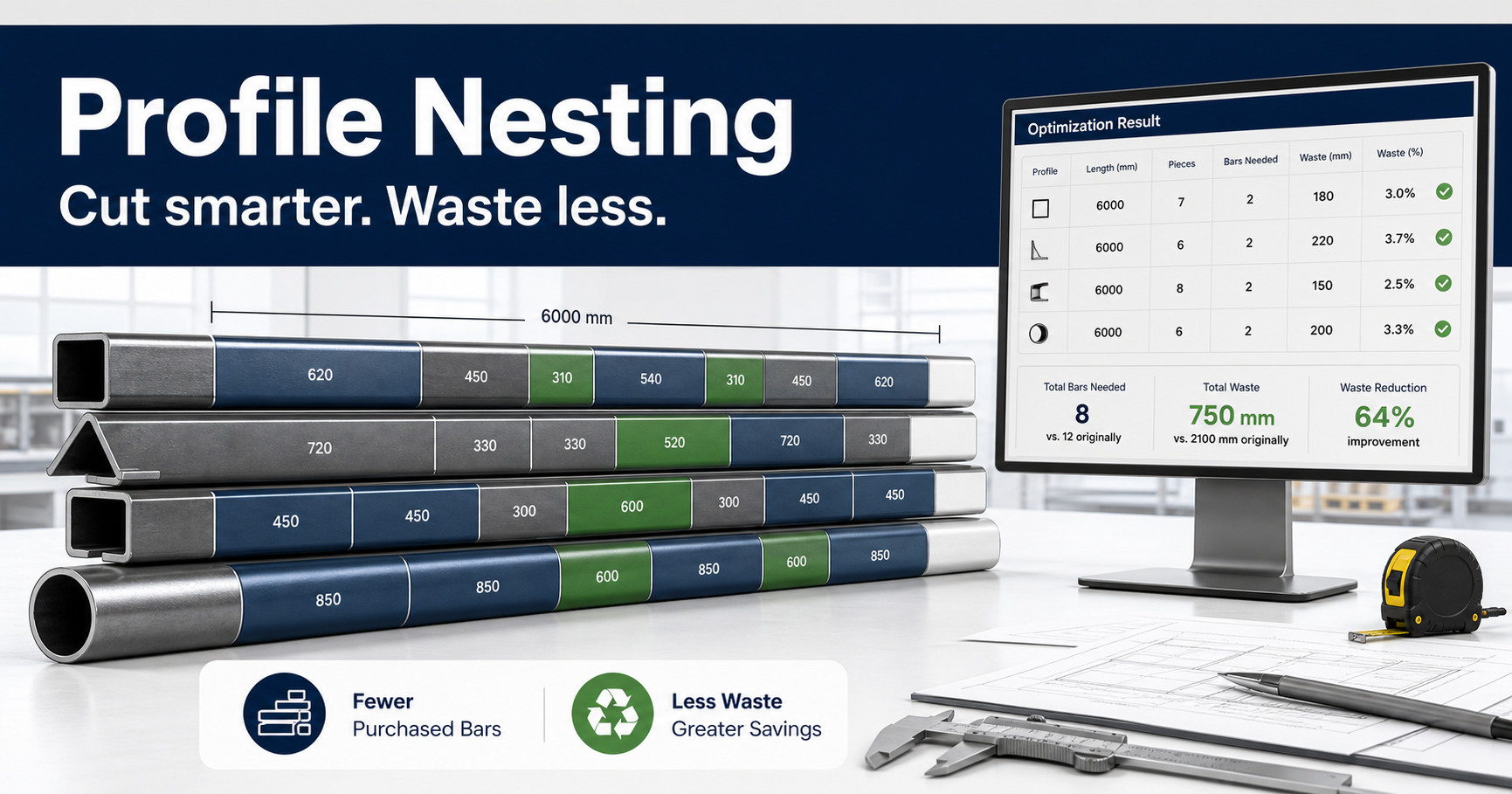
The result shows bars to purchase, stock usage, waste, reusable remnants and efficiency. Download Detailed Cutting Plan PDF for the operator and Detailed Pattern List Excel for grouped patterns. Move full-length requirements to the purchase list and create the Purchase Request Excel file.
Bars to purchase27Waste7,249 mmEfficiency97.8%
PDFDetailed Cutting PlanXLSXPattern List
Move to Purchase List
Continue where you left off
Keep my list and settings on this device is optional. When enabled, your list and settings remain in this browser for 30 days. On your next visit, choose Continue my saved work. Delete from this device removes the local copy. Sample calculations do not overwrite your saved work.